Android Digital Signage and Retail Device Management
Android Digital Signage and Retail Device Management
Android signage and retail devices need two tools working together: a CMS to control what shows on screen and an MDM to control the device itself. Use kiosk mode to lock devices to a single app, push your CMS app through Managed Google Play, and apply security policies to prevent tampering. Your CMS handles content. Your MDM handles everything else. Unsure what EMM and MDM are? Check out this article.
Android digital signage and retail device management is the process of deploying, configuring, and controlling Android-powered displays and point-of-sale devices from a central console. Think menu boards in restaurants, video walls in lobbies, self-checkout kiosks, or customer-facing tablets in retail stores. You need a way to manage those devices without walking to each one.
This article covers how MDM and EMM work for digital signage and retail. It explains how content management systems fit into the picture and what to watch out for when deploying devices at scale.
How Android Handles Digital Signage
Google built a specific device mode for exactly this use case. It is called dedicated device mode, and most people know it as kiosk mode.
In dedicated device mode, an Android device is locked to a single app or a small set of apps. The home screen, navigation buttons, and notification bar are all hidden. The device boots straight into your signage or POS app and stays there. Customers and staff cannot exit to the home screen, open the Play Store, or change settings.
This is managed through Android Enterprise and the Android Management API (AMAPI). Your MDM platform sends a device policy that tells the device which app to run and which features to disable. The device checks in with Google’s servers periodically and applies any changes.
| Feature | What it does | Why it matters for signage/retail |
|---|---|---|
| Kiosk mode | Locks device to one app | Prevents customers or staff from exiting your signage or POS app |
| Silent install | Pushes apps without user interaction | Update your CMS app across 50 screens without touching each one |
| App allowlist | Only approved apps can run | Blocks unauthorized app installs on shared devices |
| Remote wipe | Factory resets a device remotely | Recover a stolen display or repurpose a device instantly |
| Screen lock | Controls lock screen behavior | Keep displays always on without a lock screen interrupting content |
The CMS Question: Content and Device Management Are Two Different Problems
This is where most businesses get confused. A digital signage CMS (content management system) and an MDM solve different problems, and you typically need both.
A signage CMS controls what appears on the screen. It handles playlists, scheduling, templates, and media uploads. Popular Android-compatible CMS platforms include ScreenCloud, OptiSigns, NoviSign, Yodeck, and Rise Vision.
An MDM controls the device itself. It handles enrollment, security policies, app installation, OS updates, and remote troubleshooting. The MDM does not care what content is on screen. It cares that the device is online, running the right app, and compliant with your security policies.
| Signage CMS | MDM/EMM | |
|---|---|---|
| Controls | What displays on screen | The device hardware and OS |
| Manages | Playlists, schedules, media | Apps, policies, security, enrollment |
| Updates | Content in real time | Apps and device settings remotely |
| Monitors | Playback status | Device health, compliance, location |
| Example tools | ScreenCloud, OptiSigns, Yodeck | AndroidNexus, other AMAPI-based platforms |
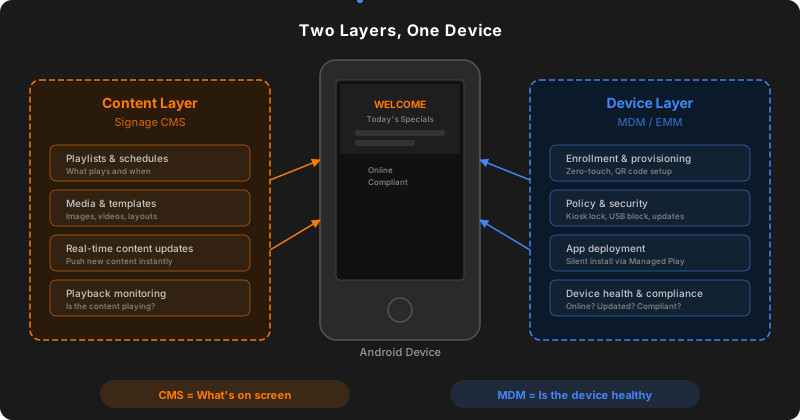
Your CMS pushes content. Your MDM pushes the CMS app itself, keeps the device locked down, and gives you visibility when something goes wrong. They work together, not as alternatives.
Deploying Content to Devices at Scale
Getting your signage CMS app onto 10 or 100 devices is where MDM pays for itself. There are two main approaches.
Managed Google Play
Managed Google Play is the enterprise version of the Google Play Store. Your MDM platform connects to it and lets you approve, distribute, and silently install apps across your device fleet. If your CMS vendor publishes their app on Google Play, you can push it to every device without anyone picking up a tablet.
For proprietary or custom apps that are not on the public Play Store, you can publish private apps through Managed Google Play. These are visible only to your organization and can be distributed through your MDM the same way.
The Deployment Flow
Here is how a typical digital signage deployment works with MDM:
flowchart TD
    A["<b>Enroll devices</b><br/>QR code or zero-touch"] --> B["<b>Apply policy</b><br/>Kiosk mode + security settings"]
    B --> C["<b>Push CMS app</b><br/>Via Managed Google Play"]
    C --> D["<b>CMS loads content</b><br/>Playlists, schedules, media"]
    style A fill:#FFF7ED,stroke:#FF7906,color:#1a1a1a
    style B fill:#FFF7ED,stroke:#FF7906,color:#1a1a1a
    style C fill:#E8F0FE,stroke:#4285F4,color:#1a1a1a
    style D fill:#E6F4EA,stroke:#34A853,color:#1a1a1a
Steps 1 through 3 happen through your MDM. Step 4 happens through your CMS. For new locations or replacement devices, this process can take under 15 minutes per device. With zero-touch enrollment, steps 1 and 2 happen automatically when the device first powers on.
Policy Configurations That Matter for Signage and Retail
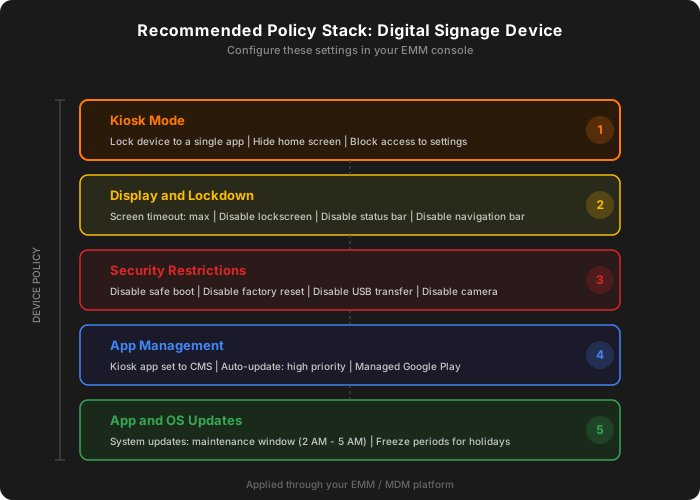
Once your devices are enrolled and your CMS app is installed, the device policy is what keeps everything locked down and running smoothly. These are the settings you should know about when configuring signage or retail devices in your EMM console.
Lockdown and Display
| Policy setting | What it controls | Recommended value for signage/retail |
|---|---|---|
| Kiosk Mode | Designates one app as the kiosk app. Device boots directly into it. | Set on your CMS or POS app |
| Screen Timeout | How long the screen stays on before going dark | Max setting your EMM allows |
| Disable Lockscreen | Removes the lock screen entirely | true so displays never show a lock prompt |
| Disable Status Bar | Hides the notification bar and quick settings | true to prevent users pulling down the shade |
| Disable Navigation Bar | Hides the navigation bar at the bottom of the screen | true to prevent users from pressing the home button |
Make sure you disable the lockscreen when setting the screen timeout to max. Otherwise the device may show a lock prompt even though the screen stays on. This is one of the most common misconfigurations on signage devices.
Security and Restrictions
| Policy setting | What it controls | Recommended value for signage/retail |
|---|---|---|
| Disable Safe Boot | Blocks users from rebooting into safe mode | true to prevent bypassing your kiosk app |
| Disable Factory Reset | Prevents manual factory reset from the device | true on all customer-facing devices |
| Disable USB File Transfer | Blocks USB file transfer to and from the device | Enabled on any device accessible to the public |
| Disable Camera | Disables all cameras on the device | true unless your app needs camera input |
| Disable Screen Capture | Blocks screenshots and screen recording | true for retail POS devices handling transactions |
App and OS Updates
| Policy setting | What it controls | Recommended value for signage/retail |
|---|---|---|
| App Auto-Update: High Priority | Pushes app updates as soon as the developer publishes them | Use for your CMS app to get content fixes fast |
| App Auto-Update: Postpone | Delays app updates by up to 90 days | Use for stable POS apps where you test updates first |
| System Updates: Maintenance Window | Restricts OTA updates to a time window you define | Set to off-hours (e.g., 2:00 AM to 5:00 AM) so displays are not interrupted |
| Update Freeze Periods | Blocks all OS updates during critical business periods | Set around holidays or product launches when uptime matters most |
For a typical signage deployment, start with: Kiosk Mode on your CMS app, screen timeout set to max, lockscreen disabled, and both the status bar and navigation bar disabled. Then lock down the device by disabling safe boot and factory reset. Set system updates to a maintenance window during overnight hours. This gives you a locked-down, always-on display that updates itself outside business hours.
What to Watch Out For
Choosing a CMS that locks you into their hardware. Some signage vendors sell proprietary media players that only work with their platform. Android devices managed through an open MDM give you flexibility to switch CMS providers without replacing hardware.
Forgetting about device health. A CMS will tell you if content is playing. It will not tell you if the device battery is low, the OS is outdated, or the Wi-Fi dropped. That is the MDM’s job.
Skipping enrollment for “simple” deployments. Even a 5-screen deployment benefits from MDM. The first time you need to update an app or troubleshoot a screen in a different city, you will wish you had remote access.
Conclusion
Android digital signage and retail device management requires two layers working together: a CMS for content and an MDM for the devices themselves. Dedicated device mode in Android Enterprise gives you the lockdown controls signage and retail devices need. An AMAPI-based MDM handles enrollment, app deployment, security, and monitoring across your entire fleet.
If you are evaluating how to manage Android signage displays or retail kiosks, understanding this separation between content management and device management is the first step.
See Android device management in action. Explore the AndroidNexus public demo.